Wallpaper Plugins
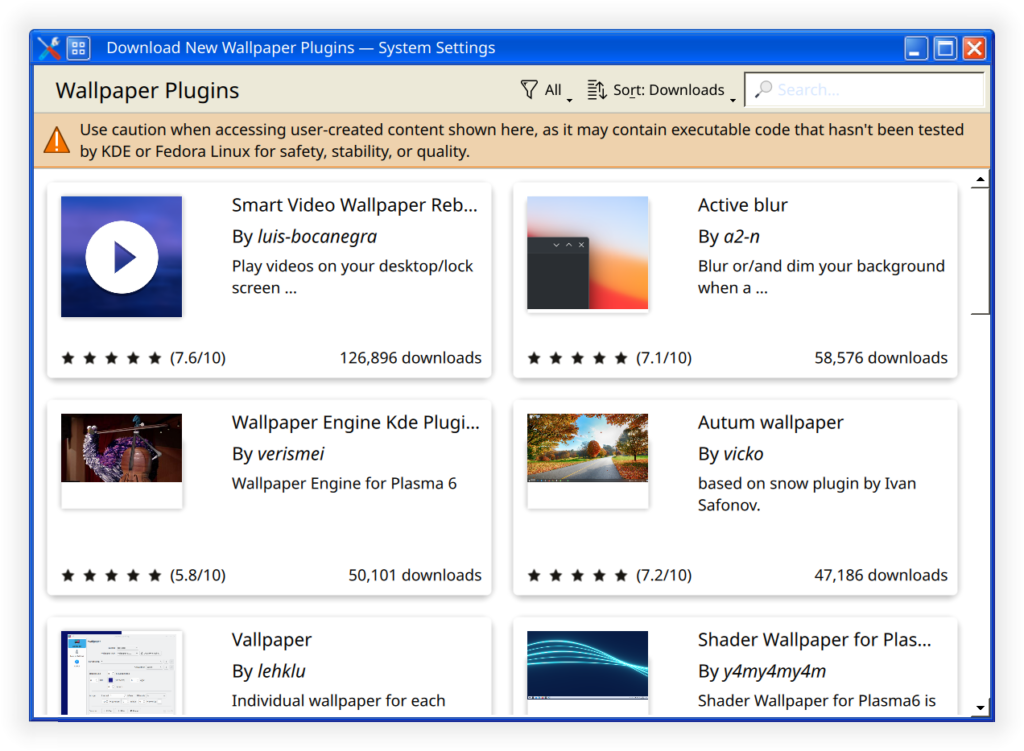
KDE is a feature-rich desktop environment offering extensive customization through its internal settings and an online store. One standout feature is the ease of changing themes, wallpapers, and desktop effects. KDE offers more built-in customization than most other environments, including Windows 11. A popular downloadable plugin, “Smart Video Wallpaper Reborn“, allows users to set video files as their desktop background. While it can occasionally conflict with Wayland, the experience is generally smooth, particularly with recent KDE 6 updates. Note that video wallpapers and similar plugins can be RAM-intensive; ensure your system has sufficient memory to prevent performance issues.
FX Customization Options
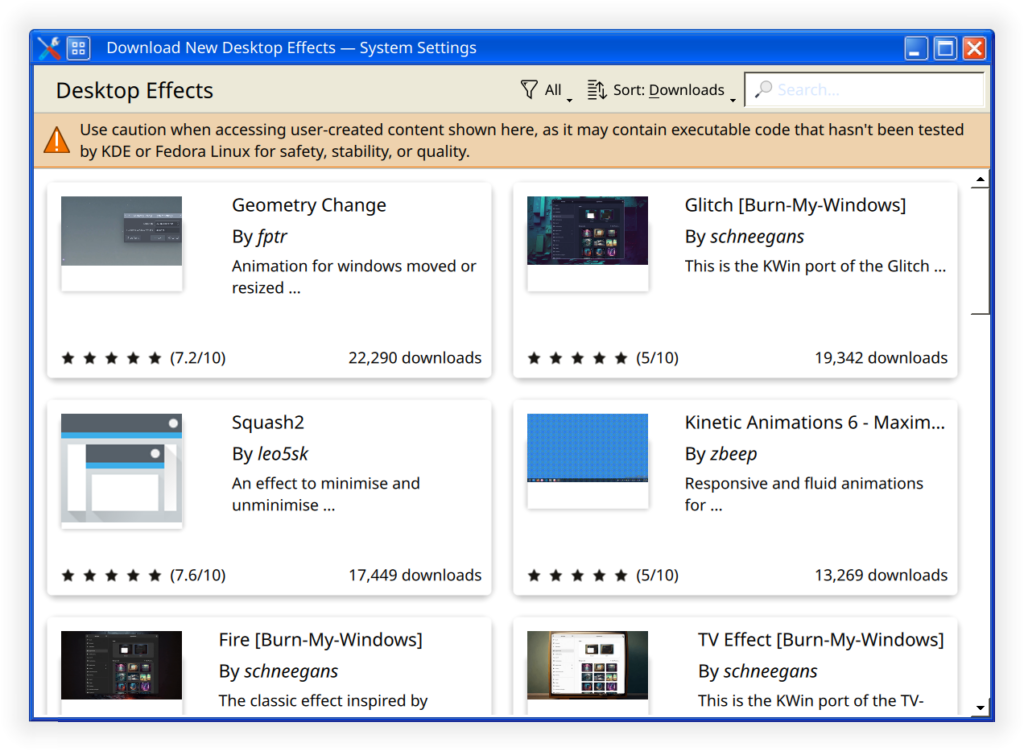
Other customization options and addons are the lock screen wallpaper, logon (SDDM) screen wallpaper, and desktop animations. The wallpaper customizations are similar to the desktop wallpaper abilities. With desktop animations, you are able to change the way KDE looks when using functions like closing a window or moving to fullscreen. These are neat features, but you can also change them to be more simplistic to achieve better desktop performance.
Users can also customize the lock screen, login screen (SDDM), and desktop animations. Desktop animations allow you to modify transitions, such as closing windows or entering full-screen mode. While visually impressive, these can be set to “simplistic” modes to prioritize system performance.
Themes
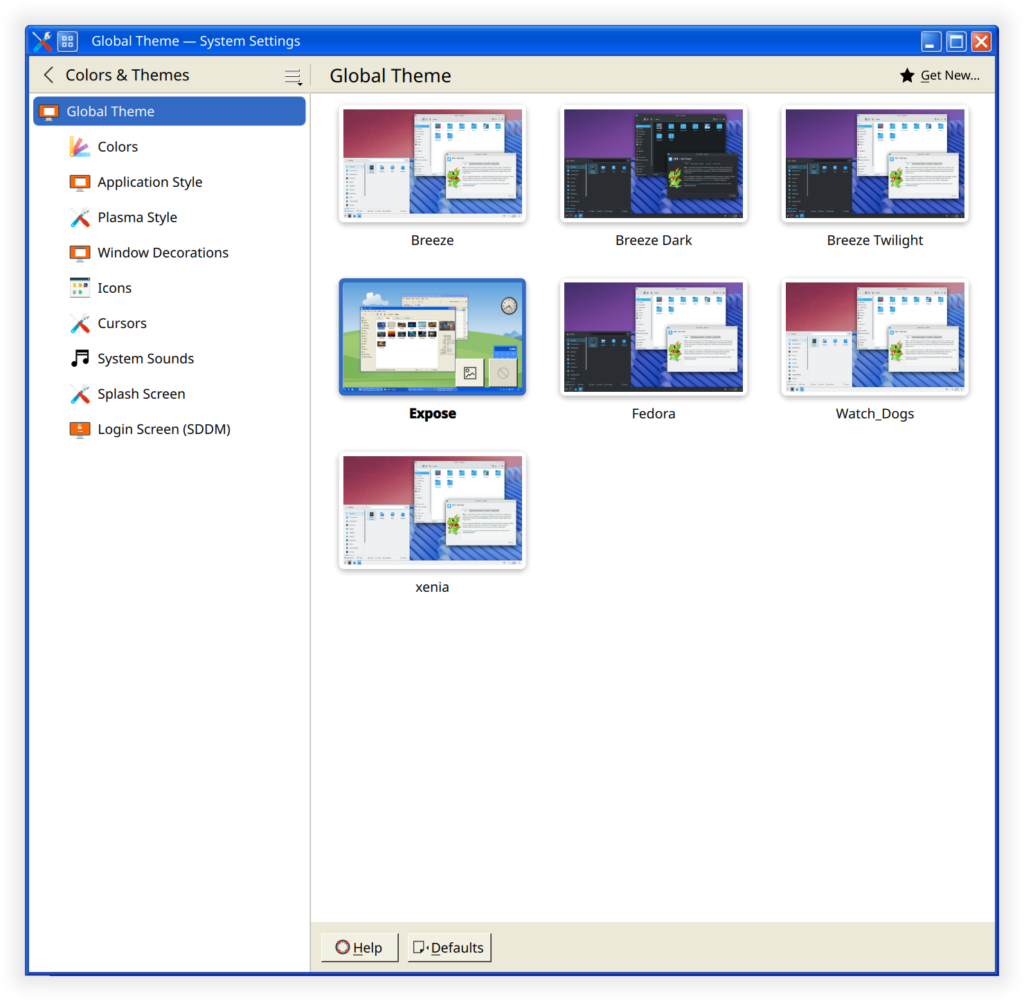
Global themes are preset packages you can install to change the look and feel of your desktop. When installing a theme, it is generally a good idea to let the theme decide the desktop and taskbar arrangement, but you can try keeping those the same if the theme change is not major. KDE is also capable of mimicking functions of other well-known desktops, such as the Mac taskbar or older windows systems like XP and 7. Customize to your hearts content, but themes make it easier to find a look you’d prefer, and afterwards you can always tweak the design or specific features.
Global themes are preset packages that transform the look and feel of the entire desktop. When applying a theme, it is usually best to allow it to adjust the desktop and taskbar arrangement for a cohesive look. KDE is versatile enough to mimic other operating systems, such as macOS or legacy Windows versions like XP and 7. You can use these themes as a starting point and then tweak specific design elements to your heart’s content.
Widgets
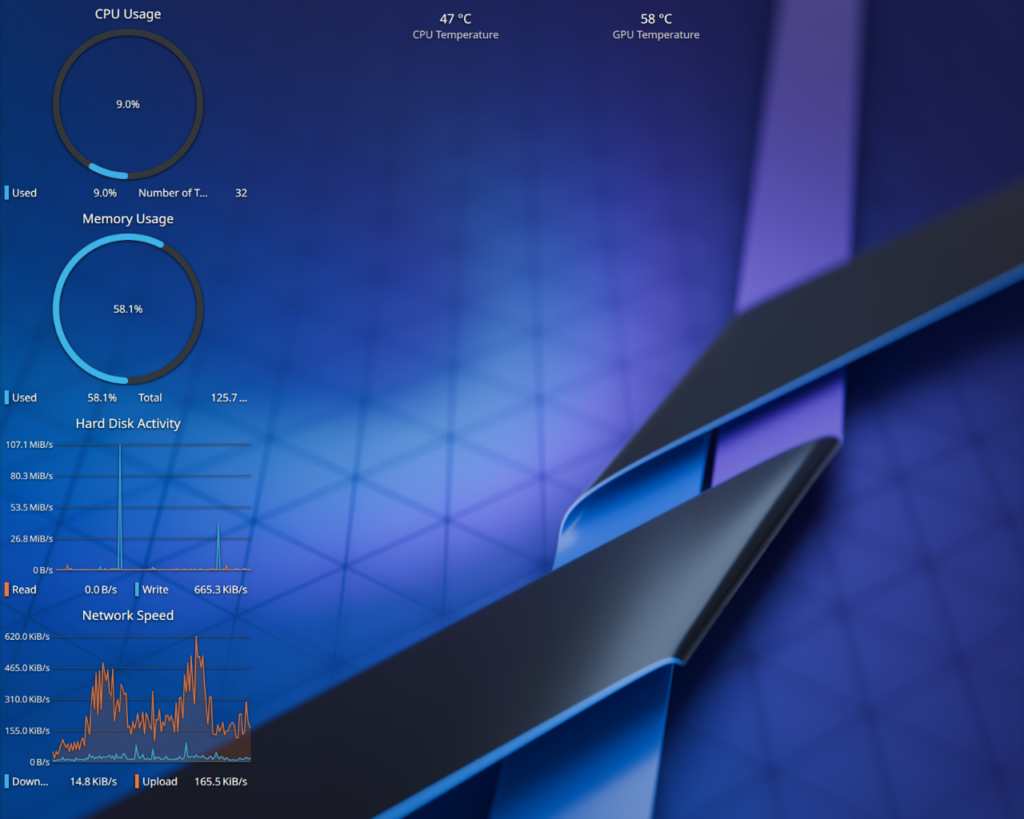
The KDE desktop also has the ability for widgets, available with built-in features or community plugins. There are a variety of options, like widgets for monitoring system usage and temperature, media playback, weather reports, and many other useful tools. With KDE, you can install user created widgets that provide more options than the built-in options. Cryptocurrency tracker, button launchers, animated widgets, and more!
The KDE desktop supports both built-in and community-created widgets. These tools range from system monitors (tracking usage and temperature) and media controllers to weather reports and cryptocurrency trackers. User-created plugins offer even more variety, including custom button launchers and animated interface elements.
KDE Customization: Frequently Asked Questions
1. Can I use a video as my desktop background?
Yes. By using the “Smart Video Wallpaper Reborn” plugin, you can set video files as your wallpaper. While it generally runs smoothly (especially on KDE 6), users should be aware that it can occasionally conflict with Wayland.
2. Will these customization options slow down my computer?
They can. Video wallpapers and complex plugins are RAM-intensive. If you notice performance issues, you can switch desktop animations to “simplistic” modes to prioritize system speed over visual effects.
3. Can I make KDE look like Windows or macOS?
Absolutely. KDE is highly versatile and offers “Global Themes” that can mimic the appearance and functionality of other operating systems, such as the macOS taskbar or legacy versions of Windows like XP and 7.
4. When I install a new theme, should I let it change my desktop layout?
Generally, yes. It is recommended to let a new theme decide the desktop and taskbar arrangement to ensure a cohesive look. However, if the theme change is minor, you can choose to keep your current settings.
5. What kind of widgets are available for KDE?
KDE supports a wide range of both built-in and community-created widgets. Common options include:
- System Monitors: Track RAM usage and CPU temperature.
- Utilities: Weather reports, media playback controllers, and cryptocurrency trackers.
- Customization: Animated widgets and custom button launchers.
6. Can I customize the login and lock screens?
Yes. KDE allows you to customize the lock screen, the login screen (SDDM), and desktop transitions (such as how windows behave when they are closed or moved to full-screen).
Questions?
If you have any questions or comments feel free to leave them below.
Affiliate
This page contains affiliate links. If you make a purchase through these links, we may earn a small commission at no extra cost to you.
Related Resources
View our How to Mount an SMB (Samba) Share in Linux with cifs-utils guide.
Learn How to Install Ubuntu Server 22.04 [Step by Step].
Check out How to Setup OpenSSH with Keys on Ubuntu 22.04.
View our How to Create a Mapped Network Drive in Windows 10 tutorial.
Learn How to Install and Configure Grafana on Ubuntu 22.04.
View all of our available online tools and converters at Formatswap.com.